Generate SSH keys in Windows

What is ssh key?

SSH (Secure Shell) uses asymmetric cryptography, a mechanism based on two related keys: a public key and a private key.
Each of them has a specific role:

  • Public key – can be safely shared. It is placed on the server you want to connect to.
  • Private key – remains only on your computer and must never be shared or transmitted over the network.

When connecting to a server using SSH:

  • The server checks whether it has your public key.
  • It sends a challenge to your SSH client that can only be correctly solved using the corresponding private key.
  • The SSH client performs a cryptographic operation using the private key and sends the result back.
  • If the result is correct, the server confirms the user’s identity – the login happens without requiring a password.

Thanks to this process, SSH authentication is significantly more secure than traditional password-based login:

  • the private key never leaves your computer,
  • even if someone intercepts the network traffic, they cannot gain access to the server,
  • access can be easily managed by adding or removing public keys on the server.

In practice, this means that SSH access is based on a unique key pair – a public key and a private key – which together prove that you are authorized to connect to the server.

How to generate SSH keys in Windows?

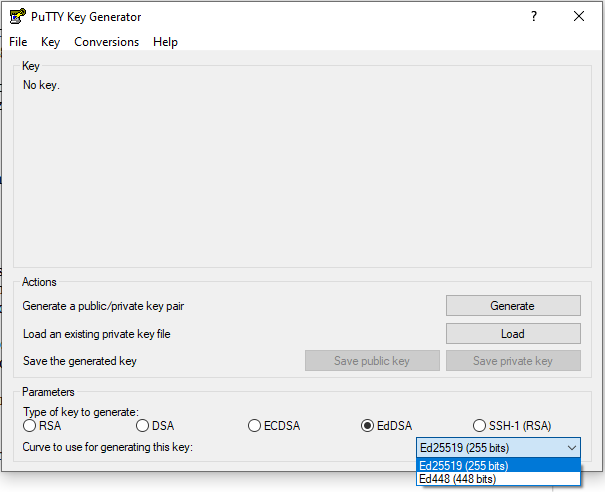
If you need to generate SSH keys on Windows, you can use the PuTTYgen application (available for download at: https://www.puttygen.com/). After opening the program, select the key type and key length. Then generate the keys by clicking the Generate button.

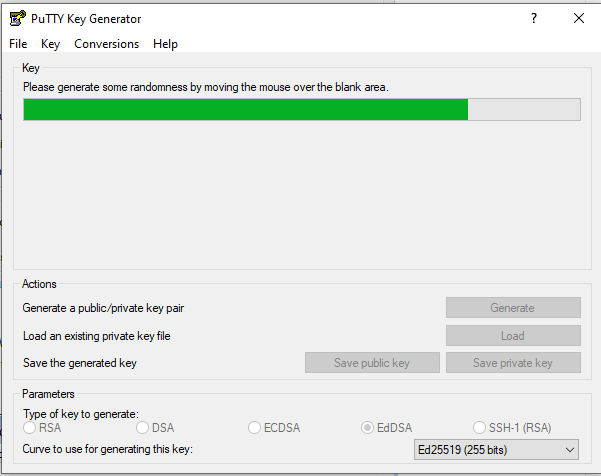
During key generation, you can move the mouse to add extra randomness to the process, which helps make the generated keys more secure. The program will prompt you to do this with the message: ‘Please generate some randomness by moving the mouse over the blank area.’

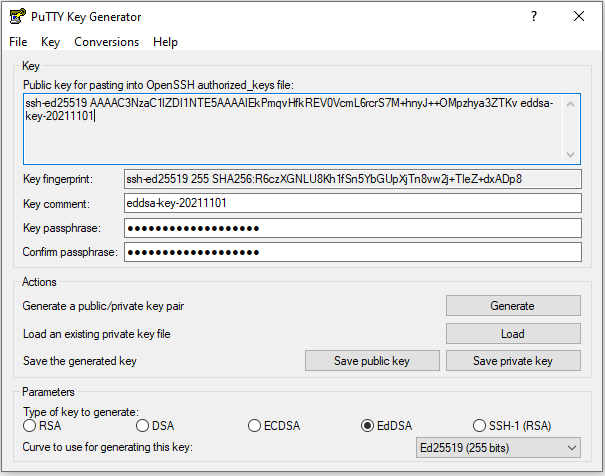
You can set a passphrase for the key by entering it in the “Key passphrase” and “Confirm passphrase” fields.

Next, save both keys by clicking “Save public key” and “Save private key”. Remember to save the private key with the .ppk extension (PuTTY Private Key) if you plan to connect to the server using PuTTY, and the public key with the .pub extension, for example:

  • my_key_ed25519.ppk – private key
  • my_key_ed25519.pub – public key

It’s also a good practice to include the key type and its purpose in the filename. After some time, you may not remember which encryption algorithm you used or what a specific key is for, especially if you have multiple keys stored on your computer.